A spectrogram is useful only when it answers the right question. With AI music exports, MP3 and FLAC can show very different pictures, but the picture alone does not tell you which file sounds better or which repair move should come next. The practical job is to separate codec behavior from real AI artifacts before you denoise, remaster, or send the track out.
What MP3 usually changes visually
An MP3 spectrogram often shows a visible ceiling in the upper frequencies. The exact shape depends on the encoder and bitrate, but a common pattern is a soft or sharp drop somewhere in the high band. That line can look dramatic on a full-range display, especially if the original FLAC spectrogram still has faint air above it.
The trap is treating that cutoff as proof that the AI generator failed. A lossy export can remove high-frequency material that was present in the master, then leave the rest of the track mostly intact. If the vocal is smooth, the cymbals are stable, and the stereo image does not pump, the high shelf may be an export choice rather than damage that needs repair.
MP3 also creates smear around bright consonants, hats, claps, and dense distorted guitars. On the screen this can appear as fuzzy clouds instead of clean vertical attacks. On playback it may sound like sand, fizz, or a slightly papery edge. That does not mean a repair tool should rebuild the whole top end. It means you should listen to short sections where the codec is most exposed: dry vocal words, reverb tails, and the last second after a chorus stops.
Why FLAC is better for archiving than diagnosis alone
A FLAC spectrogram is usually the better reference because the file is lossless. If the AI music export came from a WAV or high-quality master, converting that master to FLAC should preserve the visible frequency content and the audible detail. That makes FLAC the sensible format for a master archive, a repair handoff, or a before-and-after comparison.
Still, FLAC is not a magic truth meter. If the generator printed metallic vocal bands, watery reverb, or a dull instrumental into the master, FLAC will preserve those problems with great loyalty. The spectrogram may look full while the lead vocal still has a glassy ring at 6-10 kHz, or the low mids may look solid while the bass note feels smeared. Lossless storage keeps evidence; it does not improve the evidence.
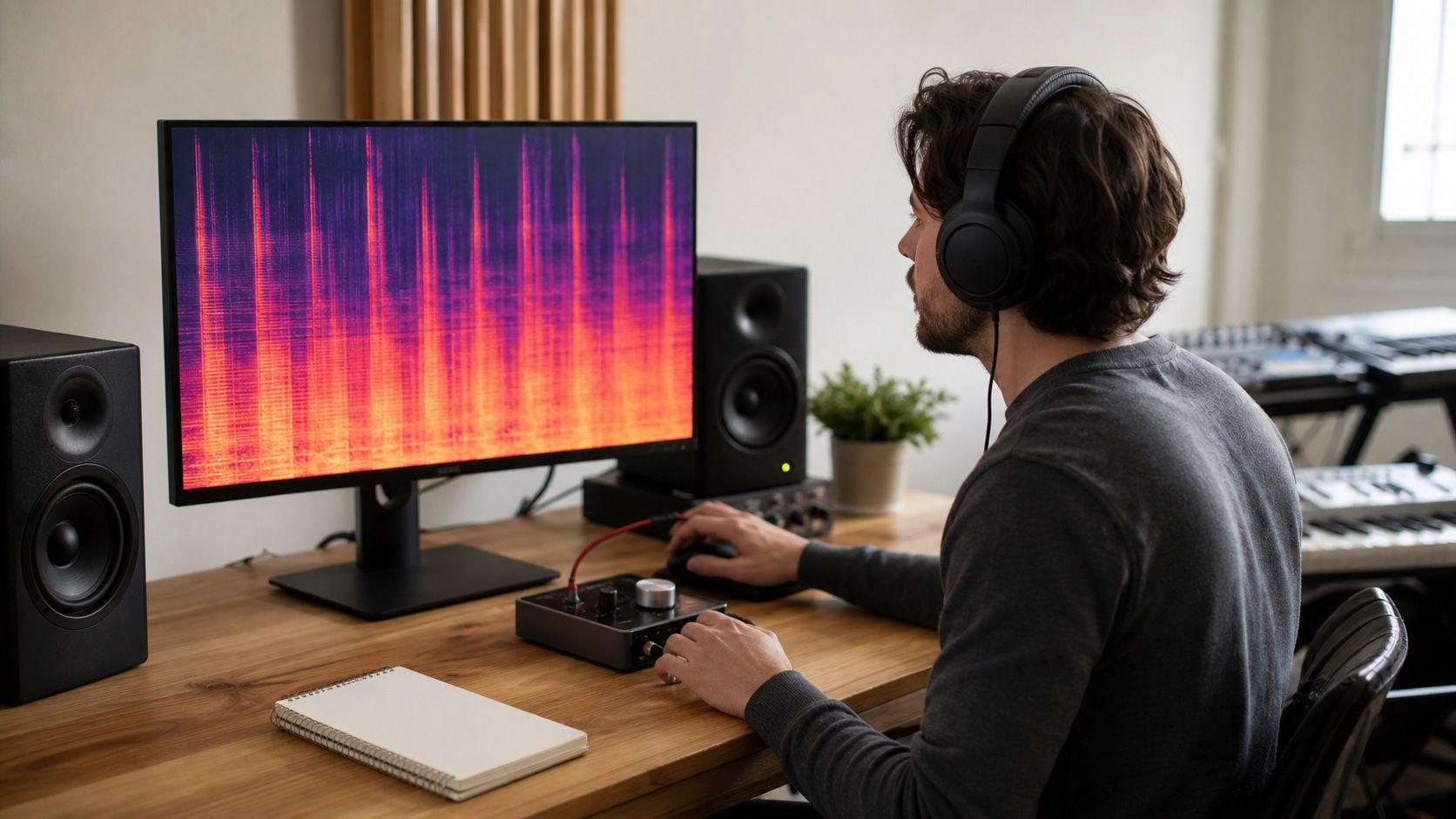
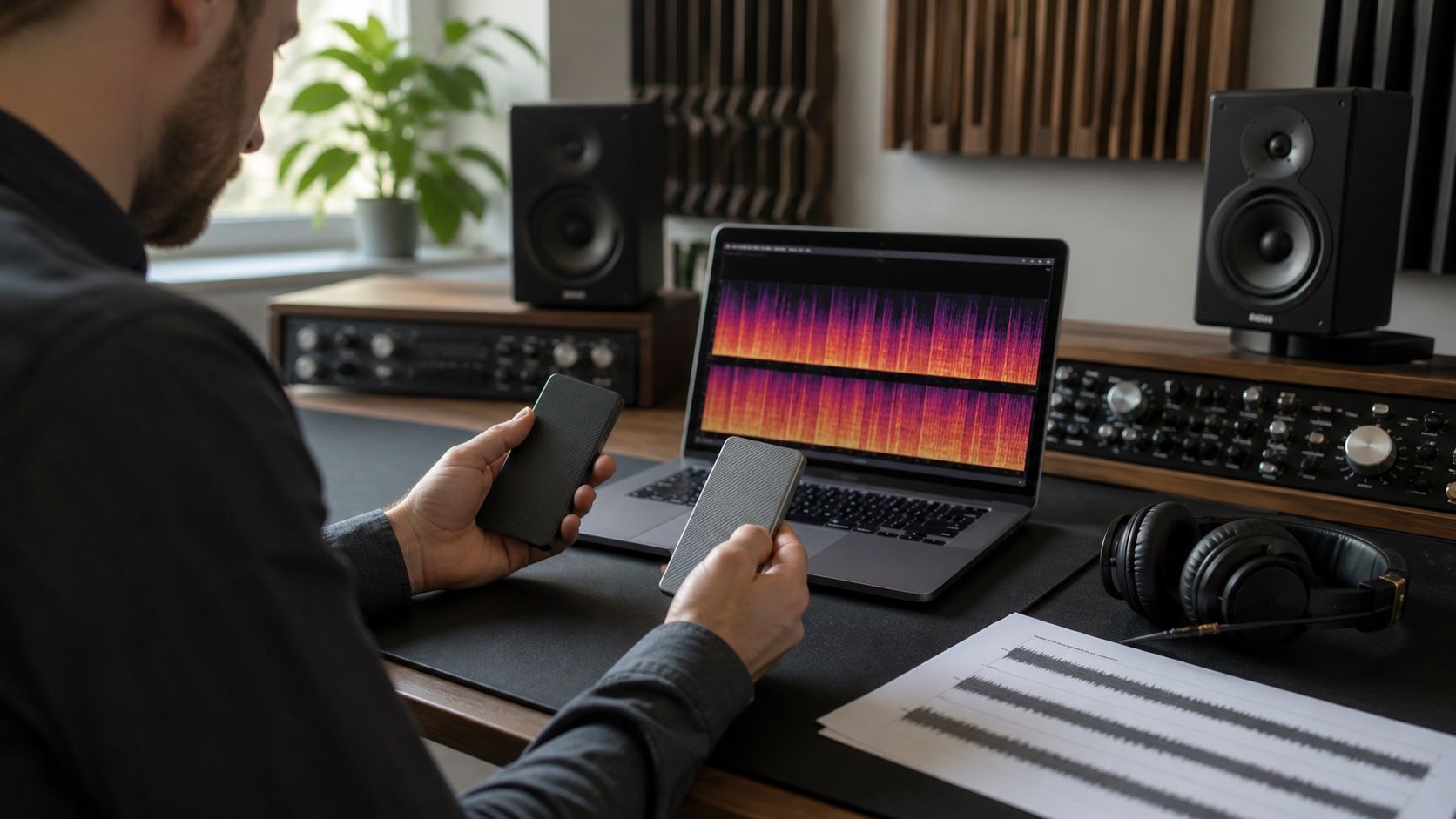
For diagnosis, I prefer opening the FLAC spectrogram and the MP3 spectrogram side by side, using the same time window and color scale. If the odd texture appears in both, it probably belongs to the AI render or the mix. If it appears only after MP3 export, treat it as codec damage and avoid processing the master to chase it.
Do not confuse codec marks with Suno artifacts
Suno-style artifacts often live in patterns, not just in frequency limits. A vocal may develop a metallic vowel that holds too steadily across several notes. A backing pad may shimmer in a way that feels detached from the chord. A snare may leave a brittle tail that repeats every bar. These problems may show up on a spectrogram as narrow bands, ragged high-frequency sprays, or unstable harmonic stacks, but the screen should confirm what you hear rather than replace listening.
Codec marks behave differently. Low-bitrate MP3 damage often gets worse on cymbals, stereo ambience, and busy choruses. It may disappear or become less obvious when you return to the FLAC. AI artifacts can remain just as annoying in the cleanest export because they were generated as part of the sound. That distinction matters before artifact removal: a de-esser or spectral repair pass aimed at MP3 fizz can dull a perfectly usable master, while ignoring a printed metallic band can leave the final file fatiguing.
A quick test is to loop eight bars with three points marked: the lead vocal, the loudest chorus, and a sparse tail. If the same defect follows the melody and survives in the FLAC, call it a source artifact. If the defect blooms only in the MP3 delivery file, keep the master untouched and change export settings instead.
Compare exports from the same master
The comparison only works when both files come from the same master. If you compare an early MP3 bounce against a later FLAC with different loudness, different limiter settings, or a repaired vocal, the spectrogram will mix format differences with production differences. That is how people end up blaming compression for a problem caused by the last mastering pass.
Export one FLAC and one MP3 from the same final file. Match their start time, do not normalize one but not the other, and inspect the same short sections. Use a wide view for the overall cutoff, then zoom into attacks and reverb tails. The wide view tells you how the encoder handled the high end; the zoomed view tells you whether transients or ambience became messy.
| Check | What it suggests | Next move |
|---|---|---|
| High band drops only in MP3 | Expected lossy compression behavior | Keep FLAC as master and export a higher bitrate MP3 if needed |
| Metallic vocal band appears in both | Printed AI artifact or mix issue | Repair from the lossless file before delivery export |
| Fizz appears mainly on chorus cymbals in MP3 | Codec stress in dense material | Raise bitrate, reduce excessive top-end boost, or deliver FLAC/WAV |
| Low end looks similar but feels soft | Possibly mastering or arrangement, not format | Check limiter, bass balance, and mono compatibility |
Choose the file format for the next step
Use FLAC when you need a stable repair source, a master archive, or a file that might be processed again. It saves space compared with WAV while avoiding the irreversible losses of MP3. If the next person in the chain will denoise, split stems, remaster, or make a serious comparison, FLAC is the safer handoff.
Use MP3 when the file is meant for quick preview, messaging, or public delivery where size matters more than future editing. In that role the MP3 spectrogram is still useful: it tells you whether the chosen bitrate is punishing the track. AI music with dense percussion, bright vocals, and wide ambience can expose a weak MP3 setting faster than a sparse acoustic mix.
The sensible workflow is plain: repair and master from the lossless file, keep the FLAC as the reference, then make the MP3 as the final delivery copy. If the MP3 spectrogram looks thinner but the listening check passes, leave it alone. If it adds audible fizz, do not try to rebuild a delivery-only MP3. Go back to the master, adjust the export, and compare again.