People search for image to audio spectrogram tools for two very different reasons. Some want a playful encoder that turns a picture into sound and then reveals it again in a spectrogram. Others hope a saved spectrogram image can restore a damaged track. Those are not the same job, and mixing them up leads to poor repair decisions.
Why this search is usually about encoding, not repair
An image to audio spectrogram converter online usually works by treating the picture as a visual target. The tool creates audio that, when viewed as a spectrogram, resembles the image. This can be interesting for sound design, classroom demonstrations, or experimental noise textures. It does not mean the tool understands a finished song, a vocal take, or a broken AI music export.
The giveaway is the output itself. Encoded image audio often sounds like chirps, whistles, buzzes, and synthetic noise because it is designed for the eye first. The sound exists so the spectrogram image can be seen again. Real audio repair has the opposite priority: the listening result matters first, and the spectrogram is only one diagnostic view.
That distinction is important for Suno and other AI music work. If a chorus has a metallic vocal edge, a random image-to-spectrogram generator will not know which part is lead vocal, which part is reverb, and which part is musical brightness. It can draw or encode shapes, but it cannot decide what should be preserved in a mix.
What a spectrogram image loses
A spectrogram image is a rendered snapshot, not the same thing as source audio. It normally loses phase information, exact amplitude detail, stereo relationships, and the settings used to create the view. Window size, color scale, frequency range, and image compression all change what you see. A JPEG of a spectrogram may look sharp enough for a blog post and still be useless as a repair source.
Even a clean PNG spectrogram cannot fully describe how the waveform should move sample by sample. The image may show a bright horizontal line around a whistle, but it does not carry enough information to rebuild the original vocal around it. It may show blocks of percussion energy, but it cannot restore the transient shape of a snare with confidence.
This is why audio reconstruction from pictures stays limited. A decoder can estimate sound from the visible energy, especially for simple tones or intentionally encoded images, but it is guessing around missing information. For music repair, those guesses can create watery textures, unstable pitch, or hollow ambience. The result may be fascinating, but it is not a dependable way to fix a release file.
When image-based tools are useful
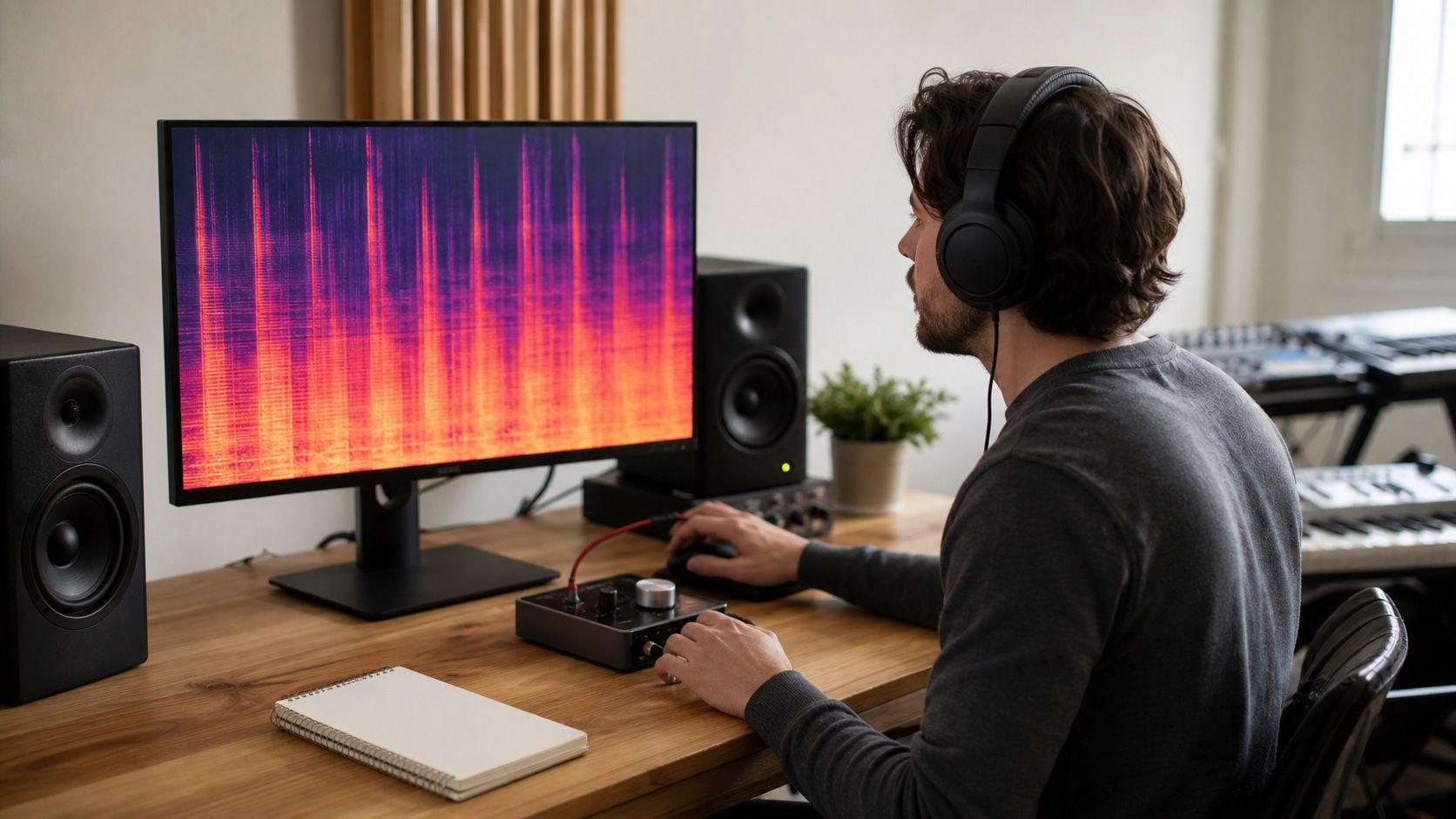
Image-based spectrogram tools still have a place. They can teach how frequency and time relate: vertical marks for attacks, horizontal bands for steady tones, bright clouds for noise. They can also help a producer recognize why harshness near the top of a vocal looks different from a low-frequency hum or a codec cutoff. For learning, the visual feedback is immediate.
They are also useful for deliberate sound design. If you want a hidden-looking texture, a synthetic sweep, or a noisy transition that draws an image in a spectrogram, an image to spectrogram online tool can be part of the creative process. In that case the strange sound is the point. No one expects the output to become a transparent repair of an existing song.
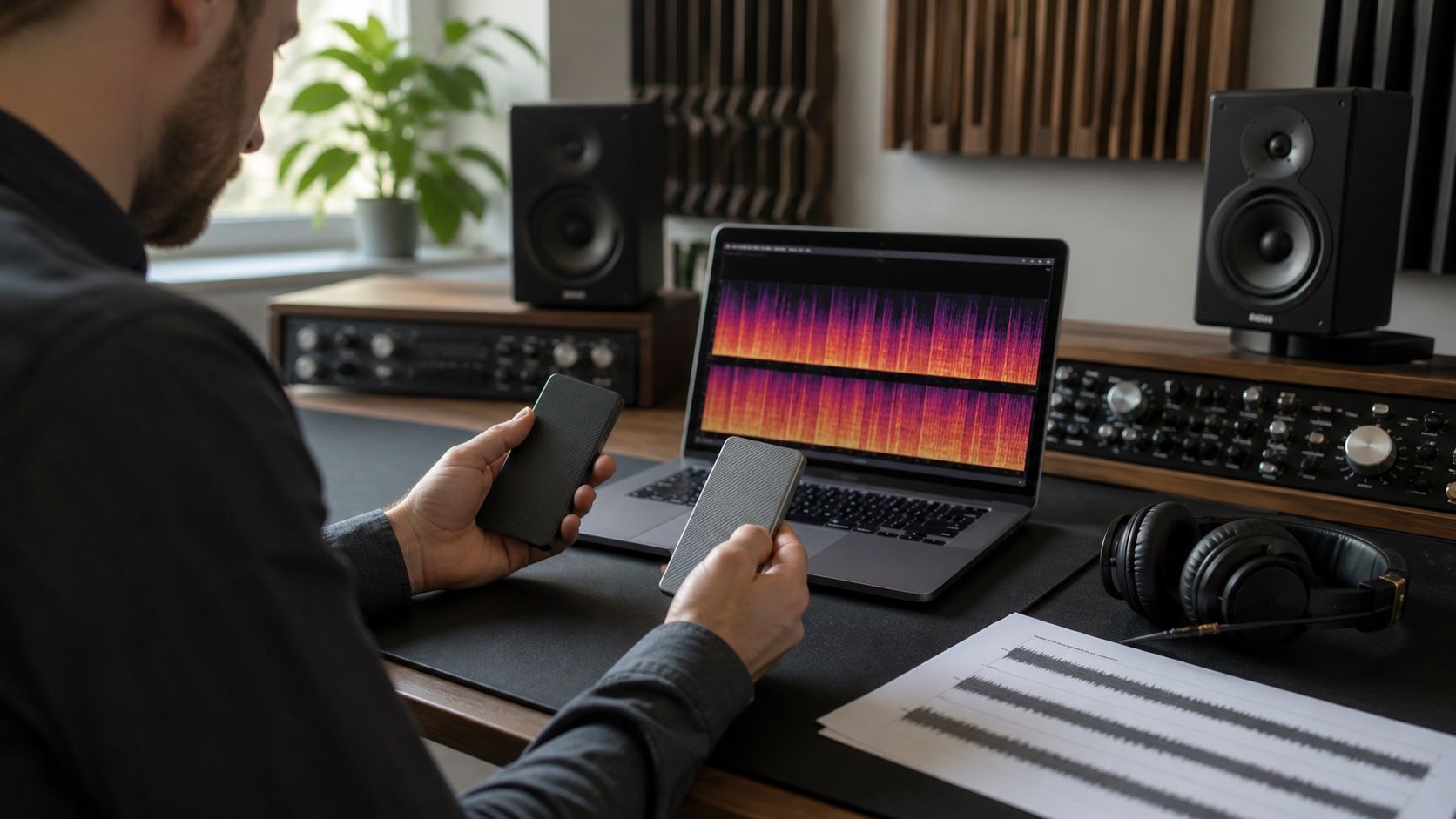
For practical audio work, I use image-based tools as explanation, not as the repair engine. A screenshot can mark where a problem sits. A spectrogram image can be sent with notes to show that the harsh band appears every time the chorus hits. But the actual processing should happen on the source audio, ideally a WAV or FLAC export, not on a rendered picture of the problem.
Why source audio still matters
Source audio gives repair tools the timing, amplitude, and waveform detail they need. If you want to remove a hum, reduce AI shimmer, tame a sharp vocal band, or compare MP3 and FLAC exports, the repair chain should start with the best available audio file. A spectrogram image can guide your eyes, but it cannot replace the file that contains the sound.
With Suno-style exports, this means saving the cleanest version before extra compression. Work from the lossless file when possible. If all you have is an MP3, repair from that MP3, but do not expect a separate spectrogram image to recover what the codec removed. The image may help you locate the damage; it will not bring back lost high-frequency detail or undo phase changes.
| Input | Good use | Risk |
|---|---|---|
| Original WAV or FLAC | Repair, mastering, stem checks, format comparison | Problems printed by the AI still need careful listening |
| MP3 export | Preview checks and delivery quality checks | Codec artifacts can be mistaken for source artifacts |
| Spectrogram screenshot | Notes, education, rough location of a defect | Too much audio information is missing for reliable restoration |
| Encoded spectrogram image | Creative effects and experiments | Output may be visually clever but musically rough |
How to avoid confusing experiments with restoration
Start by naming the job. If you want to make a picture audible, use an image to audio spectrogram tool and judge it as an experiment. If you want to clean a vocal, reduce noise, or prepare an AI music export, open the source audio and use the spectrogram as a diagnostic view. The same word can appear in both searches, but the workflows are different.
A useful repair note is specific: the vocal buzz starts at the second chorus, the hiss rises during the outro, the high band disappears only after MP3 export, or the low hum sits under the whole track. Those notes connect the visible pattern to a listening problem. A vague promise to convert an image back into audio does not.
The safest rule is simple. A spectrogram image can explain a problem, document a problem, or become material for an experimental sound. It should not be treated as a reliable substitute for the recording. For real audio work, keep the source file, compare versions by ear and by spectrogram, and use picture-based tools only where their limitations are obvious.